
This guide is available as a video:


All of the text that isn't found in the options panel is loaded from a language files. This makes edits much easier as all text is found and edited in this single file rather than needing to edit multiple files.
Where Is The Text File Located?
The file you need to edit for text will be depend on your default language set in WHMCS and your design set in WizardPanel. You can find/change your default language under WHMCS admin > Configuration () > System Settings > General Settings > localization. If for example your default language is English you will be able to edit the text in the english.php file below:
/whmcs_path/modules/addons/zomex_template_manager/lang/design_name/english.php
By default we include the English file which contains all of the text used within the design broken down into pages.

Overrides
In v3.6 we added support for language overrides. Language overrides allow you to separate your customized language text from the master language file ensuring that your customizations are safe from future updates. To use overrides simply move your custom language strings to the overrides directory e.g:
/whmcs_path/modules/addons/zomex_template_manager/lang/design_name/overrides/english.php
How To Edit Text
Editing text within this file is easy but must follow some guidelines. The value between the 2 single quotes is the reference that is used by the design and should not be edited. The text within the double quotes is what is displayed within the template and is fully editable. It is important to note that this file is never replaced during updates so your customizations will be safe.
Example Edit
As an example let's edit the line of text found in the top left of our designs. This text is found within the Toolbar section:
$_LANG['stellar_toolbar_text'] = "We provide premium cPanel hosting!";Simply customize the text between the two double quotes, for example:
$_LANG['stellar_toolbar_text'] = "The best IPTV Services!";You can see the difference before and after this edit below:

The process is the same for editing any text within either design. Some text is editable as blocks of content aside from just one line. For example the homepage overview text is within the homepage section:
$_LANG['stellar_homepage_overview_text'] = "

<p>We provide Shared Hosting, Reseller Hosting, Business Hosting, Virtual Private Servers, Dedicated Servers and many more solutions for individuals, families, organisations and businesses. As we are a pronounced web hosting company we include a free domain name registration/transfer with all of our web hosting plans. The domain name included with your hosting plan is yours to carry on forever.</p>

<p>Our experts are available 24 hours a day, 7 days a week by customer desk, live chat & by phone for those times when you need help. Whether you need help with server assistance, registration of domains, transferring domain and websites, hosting related issues, control panel guidance we are here to assist you!</p>

";
Customize the text between the double quotes however you like. For example:
$_LANG['stellar_homepage_overview_text'] = "

<p>Stream from over 30,000 TV Shows & 10,000 Movies with our premium IPTV Services. Our experts are available 24 hours a day, 7 days a week by customer desk, live chat & by phone for those times when you need help.</p>

<p>Signup today and get your first month free.</p>

";
You can see the difference before and after this edit below:

Global Text
At the top of the language file you will find a selection of global text. Certain text such as your company name is used throughout the design. Setting your company name once here will apply it throughout your website.
Removing content blocks
It is possible to remove blocks of content instantly using the language file. Each block of content will have a setting at the top ending with _display.
For example on the homepage if you wanted to remove the why choose us section open the language file and find that block of code. At the top you will find:
$_LANG['stellar_homepage_whychooseus_display'] = true;Change this to false as below. This will remove that block of content from the front end.
$_LANG['stellar_homepage_whychooseus_display'] = false;Icons
Our designs make use of high quality icons courtesy of Font Awesome. These icons are used throughout your website to add emphasis to buttons, links, feature comparisons and lists. The icons are set directly in the language file allowing you to easily switch them from a directory of over 7000. Icons within the language file always start with far, fas, fab, fad or fal.
For example the toolbar Client Area icon is defined in the language file as:
$_LANG['stellar_toolbar_menu_clientarea_icon'] = "fas fa-lock";If you wanted to replace this icon simply view the Font Awesome directory and find the icon you'd like to use. Copy the icon value (Screenshot) and replace within the setting as so:

$_LANG['stellar_toolbar_menu_clientarea_icon'] = "fas fa-user";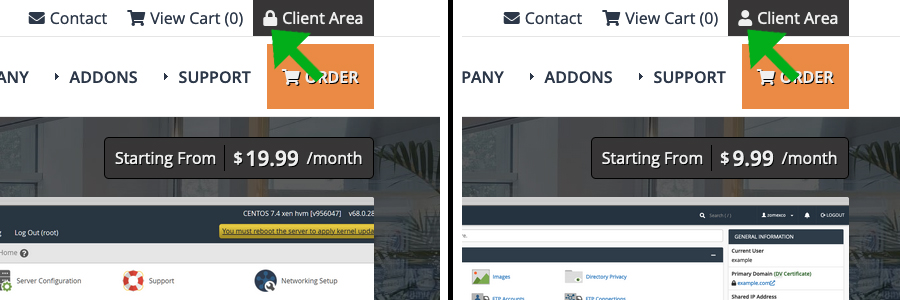
The result of this icon change is shown above.
You can also remove any icon by leaving the setting blank for example:
$_LANG['stellar_toolbar_menu_clientarea_icon'] = "";Duplicating content blocks
All of our designs support the duplication of content blocks using the language file. Each content block supports up to 10 (features, testimonials, slides etc). This is achieved by duplicating a block in the language file and incrementing the number.
For example in Stellar there are 3 default testimonials on the testimonials page.

The 3rd testimonial is the following block in english.php:
// Testimonial 3

$_LANG['stellar_testimonials_3_display'] = true;
$_LANG['stellar_testimonials_3_displayorder'] = 0;
$_LANG['stellar_testimonials_3_quote'] = "

<p>I've been a customer with " . $_LANG['stellar_setting_companyname'] . " for over 5 years, they never fail to disappoint me and the service has been top notch since I created my first order with " . $_LANG['stellar_setting_companyname'] . ". Don't hesitate to join!</p>

";
$_LANG['stellar_testimonials_3_author'] = "George";
$_LANG['stellar_testimonials_3_url'] = "www.msn.com";
$_LANG['stellar_testimonials_3_image'] = "homepage-testimonials-3.png";
$_LANG['stellar_testimonials_3_alt'] = "client 1";
$_LANG['stellar_testimonials_3_image_url'] = "";
$_LANG['stellar_testimonials_3_image_url_newwindow'] = false;
To add a 4th testimonial duplicate this block directly underneath the 3rd.
Then change the newly created block _3_ references to _4_ as so:
// Testimonial 4

$_LANG['stellar_testimonials_4_display'] = true;
$_LANG['stellar_testimonials_4_displayorder'] = 0;
$_LANG['stellar_testimonials_4_quote'] = "

<p>I've been a customer with " . $_LANG['stellar_setting_companyname'] . " for over 5 years, they never fail to disappoint me and the service has been top notch since I created my first order with " . $_LANG['stellar_setting_companyname'] . ". Don't hesitate to join!</p>

";
$_LANG['stellar_testimonials_4_author'] = "George";
$_LANG['stellar_testimonials_4_url'] = "www.msn.com";
$_LANG['stellar_testimonials_4_image'] = "homepage-testimonials-3.png";
$_LANG['stellar_testimonials_4_alt'] = "client 1";
$_LANG['stellar_testimonials_4_image_url'] = "";
$_LANG['stellar_testimonials_4_image_url_newwindow'] = false;
The 4th testimonial will be automatically added to your website without needing to edit any template files directly. It will also be safe from updates using overrides.

Editing Guidelines
The language file uses PHP so it must follow a certain structure/rule set to avoid error. You do not need any coding experience to edit this file but there may be a small learning curve involved. We recommend making a frequent backup of your language file, if an error occurs you can restore your backup easily.
Correct Structure
Make sure that you only edit the content between the 2 double quotes. Each line also has to end with a semi colon (;).
If you use a double quote within your content it will conflict with the PHP structure and cause an error. For example:
$_LANG['stellar_page_privacy_policy'] = "

    <p>We collect information from our website visitors using <a href="https://www.google.com/analytics">Google Analytics</a>

";
To correct this you need to escape the quotes with a backslash:
$_LANG['stellar_page_privacy_policy'] = "

    <p>We collect information from our website visitors using <a href=\"https://www.google.com/analytics\">Google Analytics</a>

";
If you run into any issues editing the file you can contact our support team at anytime. If there is an error within the file you can also use a free online tool named PHP Code Checker to point you to the line(s) where the error is occurring. Simply paste the full contents of your language file on their website and click the Analyze button.
Naming Conventions
We have broken down the content per page and used a system to make it easier to find the sections of text. You can search the file for the following references to find the sections you're looking for.
Settings - The global settings such as company name, address etc
index.php - All of the homepage contents
custom1.tpl to custom10.tpl - These are the 10 WizardPanel sales pages (Shared Hosting, Reseller Hosting etc). They are in order as listed in WizardPanel. custom1 = Shared Hosting, custom2 = Reseller Hosting etc
company.php - The content of the company.php page
why-choose-us.php - The content of the why-choose-us.php page
testimonials.php - The content of the testimonials.php page
affiliate-program.php - The content of the affiliate-program.php page
terms-of-service.php - The content of the terms-of-service.php page
accpetable-usage-policy.php - The content of the accpetable-usage-policy.php page
privacy-policy.php - The content of the privacy-policy.php page
Multi-language options
All of our WizardPanel designs are equipped to support multi-languages. To change your designs multi-language settings go to:
WHMCS Admin > Addons > WizardPanel > Multi-Language Support.
The options available are:

We have integrated Google Translate which is an instant way to add full multi-language support to your template. Once enabled a Google Translate button will be displayed at the top of your website, this will allow your visitors to instantly change the language of of your website. Google will automatically translate the default text of your design to the supported language. This means you can have a multi-language website while only maintaining the content is your single default language.
On (Native Support)

With multi-language support set to on WizardPanel will use WHMCS's native language system. The way it works is each design and language has a separate file containing all of the text within the website. This allows you to translate the text for each language individually and gives you full control over each one. When enabled the header of your website will show a language selection button. When the language is changed the content is loaded from that language file.
For example your default text will be editable in the default language file. So if your default language is English you will find the text in:
/public_html/modules/addons/zomex_template_manager/lang/design_name/english.php
You can duplicate the english.php to add support for new languages. The file names follow the same as WHMCS itself. For example to add Spanish translations you could copy the content of english.php and paste to:
/whmcs_path/modules/addons/zomex_template_manager/lang/design_name/overrides/spanish.php
Then translate to Spanish and when a user selects Spanish or Spanish is the default language your website will load the content from spanish.php.
It is important to note that we do not provide any translations (why not?).
How To Remove Languages
It is possible to remove languages from being selectable which is handy for example if you are a Canadian company and you only want to support English and French. To remove a language simply delete the WHMCS language file (e.g german.php) for that language at:
/whmcs_path/lang/
Doing so will remove that language from the language selection popup.
Note: These files are handled by WHMCS so you will need to re-delete the files for languages you don't want to support every time WHMCS is updated.
Why Don't You Provide Translations?
Since we first added multi-language support to our designs we decided not to provide translations as this would take considerable amount of time to setup and maintain for over 30 WHMCS languages and 4 designs. This would result in less time developing WizardPanel, the designs and implementing new features which would be a bad use of our available time and resources.
Off (Single Language)
When multi-language is set to off your website will use the language file for your default language and English.php of WizardPanel.
Request Support
We hope you found this documentation useful. If you run into any issues we will be happy to assist you.