
WizardPanel for WordPress utilises the built-in widgets functions available to WordPress. Within the themes we have setup the footer and sidebar and widgetised areas allowing you lots of easy customization options.
If you haven't already we recommend following our content import guide to import the widgets as used in the demo. You can then customize these as much or as little as you like.
How To Access The Widgets
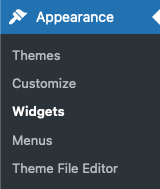
You can access the widgets directly via WordPress under:
WordPress Admin > Appearance > Widgets
Widget Locations
Our designs are setup with widgetised areas, these are specific places within a design where a content can be added using widgets.
In the case of our designs we have set the sidebar and footer to support widgets. The exact widgets we support are:
Sidebar - Will display your set widgets within the sidebar of pages that have it enabled (can be enabled by changing the page template to default.)
Footer Column 1 - The 1st column of the footer.
Footer Column 2 - The 2nd column of the footer.
Footer Column 3 - The 3rd column of the footer.
Footer Column 4 - The 4th column of the footer.
On the widgets page you will see these sections separated.
Working With Widgets
In this section we will explore how to customize and work with widgets.
Adding A Widget
To add a widget open a location you'd like it to be displayed within. Then click on the plus button. Within the popup you can select many widgets to use, click on the browse all button to view all of the available widgets. Our designs support both native and theme widgets.
Removing A Widget
To remove a widget click the widget you would like to remove, then click on the 3 dots icon to the right and finally the remove widget link.
Native Widgets
WordPress comes with many native widgets including posts, paragraphs, headings, shortcodes, video embeds and more. You can use either of these widgets within the design.
WizardPanel Widgets
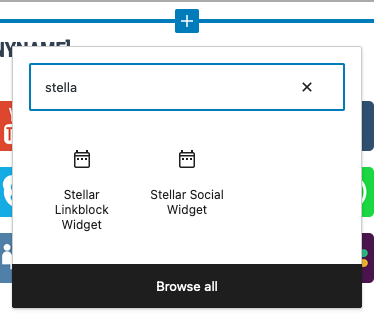
We have created some custom widgets for our designs. Currently we have WizardPanel Linkblock Widget & theme_name Social Widget. The Linkblock widget displays the company information within the footer. The Social widget displays your enabled social icons within the footer.
Our theme widgets are customized within the options panel. For example the Social widget will display your enabled social options under WizardPanel > Social.
WizardPanel Settings
Within the Pages tab of WizardPanel we have the setting Widget Style. This setting is used for the sidebar widgets. When enabled the sidebar widget boxes will utilise a background box design.
Request Support
We hope you found this documentation useful. If you run into any issues we will be happy to assist you.