
This guide is available as a video:


WizardPanel for WHMCS supports quick setup mode which dynamically displays your products/services setup in WHMCS. To enable this feature you will need to turn quick setup to on in the options panel.

About Quick Setup
When enabled the products/services setup in your WHMCS admin panel will be displayed dynamically on your website as sales pages. These sales pages are dynamic so any changes you make will update instantly in the design. This features means you won't need to manually setup pages or touch any code.
WizardPanel will add your product categories as menu items within the main menu, footer menu and also add them to the homepage services section. Visiting these pages will display the products/services you have setup for that category.
As your products/services are managed within WHMCS all of the functionality provided is supported and actively maintained by them.
Where Can I Manage My Products/Services?
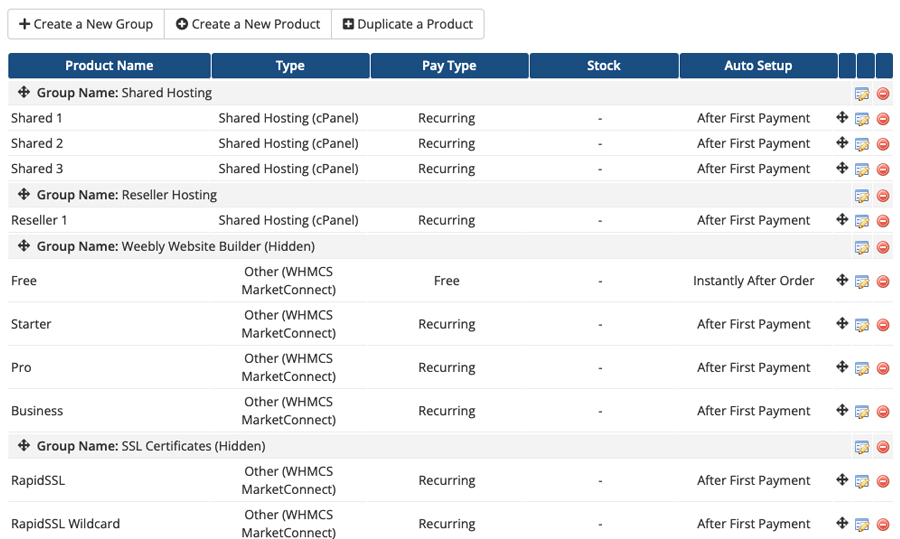
Your products/services can be managed directly within WHMCS. Our designs will pull your plans directly and will support all WHMCS features. You can manage your products/services at the below location:
WHMCS Admin > Configuration () > System Settings > Products/Services
On this page you can add and organise categories and create any type of product/service you like. WHMCS provide detailed documentation on the product creation process:
Creating Product Groups in WHMCS
Creating Products In WHMCS

Create a product within your WHMCS admin panel and it will be displayed instantly within your website under the page of your assigned category.
The product creation is default WHMCS so all of WHMCS's features/options are supported including names, description, pricing, tax, automation/module settings, configurable options and more.
Using the product description you can create a set of features as seen in the sales page example. All you need to do is format each feature on a separate line as so:
Disk Space: 10GB
Bandwidth: 100GB
Control Panel: cPanel
Script Installer: Softaculous
Dynamic Sales Pages

Each product category you create in WHMCS will create a page within the WHMCS cart. We take this page created by WHMCS, style it and link to it from the menu so it acts as a sales page within the template.
Any products/services you assign to that category will be displayed instantly within the sales page along with a order button for users to purchase.
The design of this page is set from the WHMCS Cart template you're using. You can use any WHMCS supported carts for your categories. For example using the slider cart for VPS Servers and the standard cart for the rest.
Menu Integration
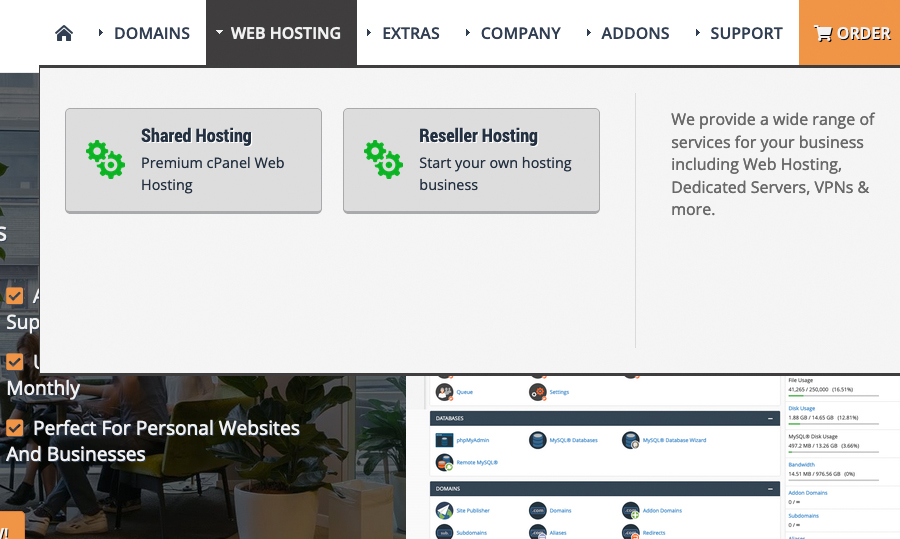
The designs dynamically pulls the product/services categories you have set in WHMCS and displays them throughout the website.
The main menu will list all of your active categories using the group names, description and will include a service icon.
Aside from the main menu they will also be displayed within the footer under services.
Homepage Integration

With quick setup enabled your product/services categories will be displayed within the homepage section under services.
Each box represents a category you have set in WHMCS. You can customize the heading and descriptions directly from within WHMCS.
Editing Content
Once you have added all of your plans to your website you may wish to customize some default content of the design, for example the WizardPanel options. All of the content aside from your plans is edited in the language files. Click the button below to learn more about editing content within the design.
Manual Sales Pages For More Control
If you'd like more control over the way your plans are displayed we also provide 10 manually edited sales pages (with quick setup turned off). These pages allow you to manage the display of your plans within WizardPanel. Multiple display options are supported for each page including a table, feature boxes, slider & more. These pages also come with lots of relevant content for each page and is the optimum choice for SEO and usability.
Request Support
We hope you found this documentation useful. If you run into any issues we will be happy to assist you.